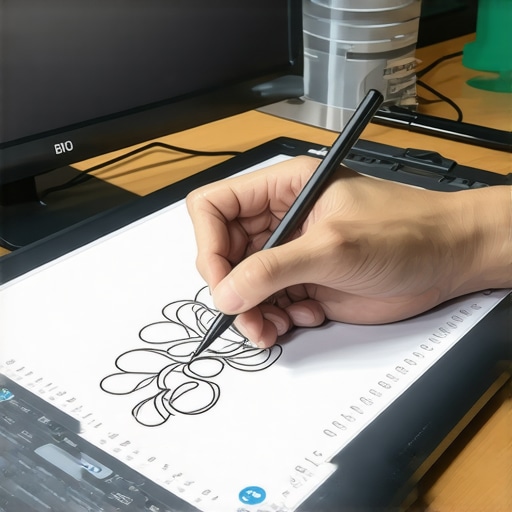
There I was, mid-drawing a delicate line on my sleek, high-resolution screen, when suddenly, my stylus started jittering uncontrollably. The line I painstakingly crafted turned into a zig-zag mess. Frustration bubbled up. It hit me—despite investing in the latest creative laptop with stellar pen support, I was battling pen input jitter like it was 2010. That frustrating moment became a turning point. I realized I wasn’t alone; countless artists and designers face this invisible foe, even with top-tier hardware.
Why Pen Input Stability Can Make or Break Your Creative Flow
Stability in pen input isn’t just about smooth lines; it’s about confidence, precision, and ultimately, your productivity. If your stylus jittering disrupts your workflow, you’re not just fighting graphics lag—you’re fighting your own creative momentum. And in 2026, with the demand for ultra-high-res displays and pressure-sensitive stylus support, these issues can feel like uninvited guests overstaying their welcome. I’ve learned from personal experience that resolving pen jitter often requires more than just adjusting your software settings; it’s about understanding the nuanced hardware and display interactions that silently sabotage your workflow.
Is Fixing Pen Jitter Really Worth It?
Early on, I made the mistake of thinking software updates alone would solve the problem. Spoiler: It’s a common mistake. I overlooked the importance of calibrating my display and configuring specific hardware settings. Once I drilled down into those hidden factors, I uncovered simple fixes that transformed my experience. For other creators, especially those working on state-of-the-art devices like 12K screens, the effort to fix jitter is well worth it, as it unlocks the full potential of your tools. Want to learn how to banish jitter and achieve fluid, professional strokes? Stay tuned—because these solutions are easier than you think, and they can dramatically improve your creative sessions.
Calibrate Your Screen for Precision
Start by individually calibrating your display to ensure color accuracy and pen responsiveness. Use dedicated calibration tools or software like the ones suggested in these calibration tips to fine-tune your high-resolution display. During my first attempt, I struggled with inconsistent strokes until I ran calibration, which brought my stylus precision back to professional standards and reduced jitter significantly.
Configure Hardware Settings for Smooth Input
Disable Unnecessary Power-Saving Features
Navigate to your device’s power management settings and turn off power-saving modes that throttling GPU or CPU performance can cause pen lag. On my work laptop, disabling these modes in Windows Device Manager resulted in more stable stylus input during long drawing sessions.
Update Graphics and Pen Drivers
Ensure your graphics card and pen drivers are up-to-date. Visit the manufacturer’s site or use dedicated updater tools. I learned this the hard way when my stylus started skipping—an outdated driver was the culprit. Updating these shared components created a smoother experience, matching the responsiveness I expected from my top-tier hardware.
Optimize Your Creative Software’s Settings
Adjust your application’s input settings, especially brush interpolation and pressure sensitivity. In Adobe Illustrator, turning off certain smoothing options can reduce input delay—see this guide for detailed steps. When I tweaked these settings, I experienced a noticeable decrease in jitter, allowing for more natural, confident strokes.
Practice Proper Stylus Handling Techniques
Hold your stylus at a consistent angle and avoid excessive pressure or rapid movements that exceed your device’s processing capabilities. A deliberate grip helped me gain more control, even on a 12K display where tiny hand movements can be magnified. This simple habit reduced accidental jitter and improved my overall drawing fluidity.
Test and Adjust Regularly
After each change, test your setup with real projects. Use specific test files in Adobe Illustrator or Photoshop to monitor jitter levels and responsiveness. Often, I found that a combination of calibration, hardware tweaks, and software adjustments produced optimal real-world results. Don’t hesitate to revisit these settings periodically to accommodate system updates or workflow changes, keeping your pen input sharp and reliable.
When many designers choose a high-resolution display or a premium stylus, they often assume that hardware specs alone guarantee optimal performance, especially in software like Adobe Illustrator. However, this belief overlooks subtle pitfalls that can undermine your creative flow. Let’s dig deeper into these overlooked nuances that can trip up even seasoned professionals.
Why Do Specs Sometimes Fail to Deliver Expected Precision, Even on the Best Hardware?
Despite advancements, hardware specifications—such as pixel density or pen pressure levels—don’t automatically translate into flawless performance. Factors like display calibration, driver compatibility, and software optimization play significant roles. For instance, a common myth is that higher pixel density always yields better detail, but without proper calibration, this can result in inconsistency and jittery pen input. According to industry experts, neglecting calibration and driver updates can cause input lag and inaccuracies, defeating the purpose of investing in top-tier gear. To truly harness your hardware’s potential, dive into this comprehensive guide that explores all the intricacies of Pen Input on high-res displays.
Common Mistakes That Might Derail Your Workflow
One frequent trap is relying solely on default software settings. Adjusting brush smoothing, pressure sensitivity, and calibration is crucial. A mistake many make is overlooking the importance of driver versions—an outdated driver can cause jitter, lag, or pressure failures. Remember, your hardware’s capabilities are only as good as its configuration. Also, don’t underestimate the impact of software-specific settings; for example, in Adobe Illustrator, tweaking settings like smoothing and performance preferences can dramatically improve responsiveness. Borrowing tips from top professionals and consulting detailed guides ensures you’re not falling into these common pitfalls. When dealing with ultra-high-resolution displays, you must also pay attention to calibration—otherwise, your colors and input fidelity suffer, leading to frustration. Doing so is easier than you think: just follow steps outlined in these calibration tips, which can make a noticeable difference in your workflow.
How Can Advanced Users Fine-Tune Their Setup for Perfection?
For the experienced, the secret lies in nuanced adjustments: custom driver parameters, third-party calibration tools, and even firmware updates. An advanced trick is to monitor your system’s resource allocation, ensuring your GPU and CPU aren’t throttled during intensive sessions. According to a recent study by tech analysts, optimized system configurations can decrease input lag by up to 30%, a lifeline for precision work. Engaging with community forums or consulting experts through our contact page can provide bespoke solutions tailored to your device. Remember, combining hardware optimization with software tweaks—and staying vigilant about updates—is the best way to maintain flawless pen input and color accuracy. Have you ever fallen into this trap? Let me know in the comments and share your experiences with achieving perfect harmony between high-res displays and stylus support.
Keeping Your Equipment in Peak Condition
Investing in a top-tier creative laptop with high-resolution display and stylus support is just the beginning. To ensure it continues to meet your evolving needs, regular maintenance and diligent tool management are essential. I personally rely on specific routines and hardware checks to keep my device functioning flawlessly over years of intensive use. Starting with hardware integrity, periodically inspecting your stylus tip and screen surface can prevent input anomalies. Replace worn stylus tips before they cause inconsistent pressure sensitivity or jitter, as recommended by this comprehensive guide.
Software updates are equally vital. Keeping your display calibration and driver software current ensures your device’s hardware is synchronized with the latest optimizations, minimizing issues like pen lag or color inaccuracies. I schedule monthly checks for driver updates via manufacturer tools, ensuring seamless integration with Adobe Illustrator or Photoshop, which can significantly enhance workflow efficiency.
Tools that Make a Difference
For precise calibration, I personally trust hardware calibration tools like the X-Rite i1Display Pro. This device plugs into my laptop, allowing me to create custom profiles for my hi-res display, which crucially reduces jitter and color mismatch problems. The process, detailed in calibration tips, is straightforward yet impactful, transforming my screen’s responsiveness and accuracy over time.
Beyond calibration, using dedicated software for monitor management helps preventEye strain and screen burn-in on high-res, long-use displays. Applications like DisplayCAL automate complex calibration routines and help maintain optimal brightness and contrast levels.
Future Trends in Long-Term Device Care
The evolution of display technology and pen input will increasingly favor integrated health diagnostics. Future laptops might include self-healing display coatings or real-time wear diagnostics, providing proactive notifications for hardware replacements before issues impact your workflow. Staying ahead means embracing these innovations early, much like moving from reactive maintenance to predictive care.
How do I maintain my high-res display and pen input performance over years?
Establishing a routine that combines hardware checks, calibration, driver updates, and proper tool selection—like a reliable stylus or calibration hardware—can dramatically extend your device’s lifespan and performance. For detailed guidance on comprehensively optimizing your setup, check out this detailed resource. Implementing these practices today will not only preserve your device’s health but also ensure your creative output remains sharp, precise, and professional for years to come. Try integrating a quarterly calibration session into your routine—you’ll notice a substantial difference in responsiveness and color fidelity, making your long-term investment truly worthwhile.
Lessons Only Experience Can Teach
One of the hardest lessons I learned was that hardware hype doesn’t guarantee flawless performance. High-resolution displays with top-tier stylus support require nuanced calibration and setup—neglecting this can turn your powerful device into a jittery mess. I used to believe that updating drivers and software was enough, but real stability emerged when I embraced regular calibration routines and hardware checks.
Another insight was discovering how subtle environmental factors—like ambient temperature and display brightness—could influence pen responsiveness. Over time, I found that consistency in my workspace, combined with routine maintenance, kept jitter at bay and allowed my creativity to flow seamlessly.
Finally, I realized that patience and continuous learning are crucial. Troubleshooting pen jitter isn’t a one-and-done affair; it’s an evolving process that demands attention to detail and a willingness to adapt your setup as technology advances. These lightbulb moments have transformed my workflow, turning frustrating sessions into productive, artistic expression.
Tools & Resources That Elevated My Workflow
My go-to calibration tool is the X-Rite i1Display Pro. It provides precise color and responsiveness calibration, ensuring my stylus interacts flawlessly with my high-res display. Additionally, the ultimate guide to pen-input high-res display laptops has been invaluable for understanding device-specific tweaks.
Beyond hardware, I rely on software tutorials for optimizing settings within Adobe Illustrator and Photoshop. These resources have consistently helped me unlock smoother strokes and more accurate pressure sensitivity. Trusting these tools has made a tangible difference in my daily creative process.
Finally, engaging with community forums—like the ones linked on the site—has kept me updated on emerging calibration techniques and hardware updates, ensuring I stay ahead in my craft. The combination of reliable tools and ongoing knowledge is the best investment in consistent, jitter-free pen input.
Seize the Moment and Embrace Precision
Every digital artist deserves a setup that empowers their vision—without interruptions from jitter or lag. Now is the time to revisit your calibration routines, update your drivers, and fine-tune your workspace. Your high-res display and stylus are the gateways to your creativity—treat them with the care they deserve.
Remember, mastering pen input stability isn’t just about fixing jitter; it’s about unlocking a level of control and confidence that elevates your work. Dive deep into the available resources and don’t shy away from experimenting. Your future masterpieces depend on the precision you cultivate today. How will you optimize your setup for the next level of artistic excellence? Share your plans below and keep pushing the boundaries of your creative journey.
I can totally relate to that frustrating experience! I recently invested in a new high-res laptop too, and I was shocked when I faced the exact problem with jittering while trying to create fine lines in my illustrations. It’s so disheartening when you have the best equipment, yet something as simple as pen input can derail your creative process.
You mention calibrating your screen, which I also found to be a game changer. I struggled with inconsistent strokes until I utilized a calibration tool; it made a noticeable difference. For anyone still grappling with jitter, I highly recommend checking the updates on drivers as well. I found that updating my graphics drivers helped tremendously with overall pen responsiveness.
One thing I noticed is how different lighting conditions in my workspace influenced jitter levels. Have others experienced something similar? How do you manage external factors like lighting when working on precision projects? I’d love to hear other tips that can help maintain a stable input while drawing!