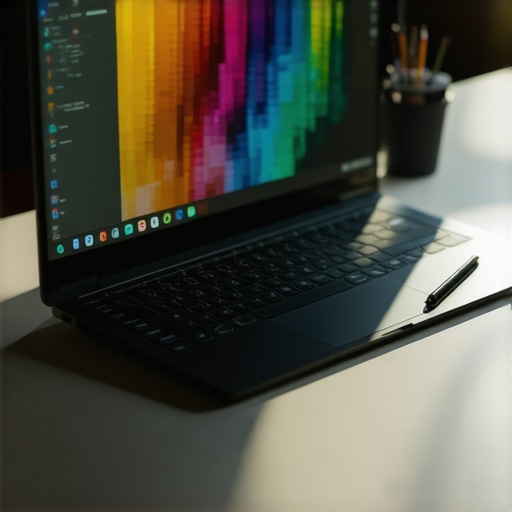
Ever had that frustrating moment when you’re working on a detailed illustration in Adobe Illustrator, only to realize your screen isn’t quite sharp enough, or your stylus feels imprecise? I remember the first time I tried to sketch with a generic laptop that claimed to support pen input. The lines were jagged, colors looked dull, and I spent more time troubleshooting than creating. That lightbulb moment made me realize how crucial the right hardware is for digital artists and designers.
Why Choosing the Right Laptop Can Make or Break Your Creative Workflow
For creatives, the tools we use are almost extensions of ourselves. A high-resolution display ensures every color, detail, and nuance is accurately rendered, while stylus support transforms your device into a digital canvas. But with countless options flooding the market, how do you find a laptop that truly meets your needs? Well, I’ve been down that rabbit hole, and I want to share what I’ve learned so you can avoid my early mistakes.
Is All the Hype Around High-Res and Stylus Support Just Marketing?
Honestly, I used to think the same. I bought a popular tablet-laptop hybrid because everyone was raving about its high-res screen and stylus integration. Turns out, I overlooked some critical factors—like pen latency and color accuracy—that made all the difference in my workflow. After some trial and error, I discovered that not all high-res screens are created equal, and not all stylus support is responsive enough for detailed work. For a comprehensive understanding, I recommend checking out this guide on pen input performance.
So, if you’re tired of mediocre tools holding back your creativity or wasting your time on setups that don’t deliver, stick around. In this post, I’ll walk you through how to pick the best design laptop with stylus support and a stunning hi-res display, tailored specifically for digital artists and designers. Ready to transform your creative experience? Let’s dive in.
Select a Screen That Inspires Confidence
Start by evaluating the display quality. Look for a high-resolution screen, ideally 4K or at least 300 PPI, to ensure your artwork is sharp and detailed. When I first upgraded to a 4K display, I noticed how much easier it was to catch tiny imperfections in my illustrations, saving me hours of rework. Check the color gamut; a wide color space like Adobe RGB or DCI-P3 ensures vibrant, accurate colors essential for professional-grade work. For example, I now rely on a display that covers 100% of the sRGB spectrum, which makes my colors pop just as I see them in print or on other devices. For detailed reviews, visit this guide on hi-res displays.
Prioritize Stylus Support and Responsiveness
Choosing a laptop with excellent stylus support is non-negotiable. Think of the stylus as your digital pencil—if it lags or feels unnatural, your workflow suffers. I tested several devices, and the difference was clear: latency under 20ms feels smooth, almost like drawing on paper. Look for models with dedicated stylus support, like Wacom AES or Microsoft Pen Protocol, which provide pressure sensitivity and tilt recognition. I once spent a day trying to draw with a stylus that lagged terribly—my lines became jagged and frustrating. After switching to a device with proven pen support, my precision improved dramatically. For an in-depth comparison, see this comprehensive guide.
Test Compatibility with Software Like Adobe Illustrator
Before making a purchase, verify that the hardware integrates seamlessly with your preferred design software. Adobe Illustrator, for instance, benefits from high processing power, plenty of RAM, and a fast GPU. I once bought a laptop with a beautiful display but a sluggish processor, and it hampered my workflow. Now, I focus on configurations with at least an Intel i7 or AMD Ryzen 7, 16GB RAM minimum, and a dedicated graphics card. It’s worth noting that some laptops support specific features like pressure curves or tilt recognition better than others—so check user reviews and forums. For detailed recommendations, see these top picks for creative professionals.
Evaluate Portability and Durability
As a digital artist, your laptop is often your mobile studio. I learned this the hard way when I carried around a bulky model that slowed me down. Today, I prefer a lightweight yet sturdy device—think aluminum chassis and solid hinge design—that can withstand daily travel. A lighter weight under 4 pounds makes it easier to sketch on the go, but don’t compromise on build quality. Check for good battery life too; a full day’s work without charging is ideal. I once had a portable device that drained in a few hours, disrupting my workflow during travel. Now, I ensure my laptop balances power and portability. For more insights, see these portable options.
Confirm Connectivity and Additional Features
Finally, make sure the laptop offers enough ports for your peripherals—USB-C, Thunderbolt, SD card reader, and HDMI are all useful for connecting drawing tablets, external monitors, or storage. I once bought a sleek ultrabook that lacked an SD card slot, forcing me to carry adapters everywhere. Now, I prioritize laptops with versatile port options. Also, consider features like a good webcam and microphone for virtual collaborations. For a curated list of suitable models, visit top design laptops with essential ports.
Many aspiring digital artists and designers fall prey to misconceptions that can hinder their hardware choices. Let’s dig deeper into what most people get wrong about design laptops, stylus support, high-res displays, and working with Adobe Illustrator. Understanding these nuances can save you time, money, and frustration, so keep reading!
Is Bigger Always Better for Screen Resolution and Stylus Precision?
Contrary to popular belief, a larger display or higher resolution isn’t necessarily the best choice for everyone. While a 4K or higher resolution offers stunning detail, it also demands more from your GPU and can drain your battery faster. Similarly, a bigger screen can be cumbersome for portability. Many professionals overlook the importance of pixel density and responsiveness, which are more critical for precision work. For instance, a high PPI (pixels per inch) display with excellent calibration provides sharper images without requiring a massive screen size. To truly optimize your workflow, consider a device with a balanced resolution and size, tailored to your working environment. For a detailed comparison, check out this guide on hi-res displays.
Beware of Overhyping Stylus Features
Many believe that any stylus support will do, but in reality, the quality of pen input varies widely. Features like pressure sensitivity, tilt support, and low latency are essential for professional work. A common trap is assuming that all styluses are equally responsive; this is false. Devices supporting Wacom AES or Microsoft Pen Protocol generally offer a smoother experience. Lags over 20ms can break your flow and produce jagged lines, so always test the stylus responsiveness before buying. Don’t fall into the trap of focusing solely on pen pressure levels—responsiveness and calibration matter just as much. For an in-depth look, explore this comprehensive guide.
What Advanced Users Should Know About Compatibility with Adobe Illustrator
Many assume that a powerful processor and RAM are enough for seamless Adobe Illustrator performance, but graphics support and driver compatibility are often overlooked. Certain stylus and display combinations can lead to inconsistent pressure curves or tilt recognition issues, hampering detailed work. Ensuring your device supports the latest driver standards and has a dedicated GPU can make a difference. Additionally, some laptops excel at minimizing input lag and providing color accuracy, which is crucial for professional-grade illustrations. To avoid pitfalls, review user feedback and professional guides, like this resource on optimizing Adobe Illustrator workflow.
Have you ever fallen into this trap? Let me know in the comments!
Maintaining your high-end creative laptop, especially one equipped with a hi-res display and pen input support, is essential to ensure it continues to perform at peak levels. As someone who has relied heavily on such gear for years, I’ve developed a set of precise methods and tools that keep my device in top shape, allowing me to focus on creating rather than troubleshooting. In this post, I’ll share my personal approach to maintaining, troubleshooting, and scaling your setup effectively, so your investment pays off over the long term.
How do I keep my creative tools in top shape over time?
First, regular software updates are non-negotiable. I always ensure my operating system, graphics drivers, and creative software like Adobe Illustrator are current. This practice minimizes bugs and compatibility issues, especially with stylus support and high-resolution displays. For example, the latest driver updates often include crucial enhancements for pen latency and color calibration, which directly impact workflow quality. I recommend visiting this resource to understand how driver updates influence pen input performance.
Next, invest in a reliable cleaning routine. I use a microfiber cloth and gentle screen cleaner weekly to avoid dust, smudges, and potential scratches—especially important given the delicate nature of high-res screens. Maintaining a dust-free environment reduces overheating and hardware stress. For hardware longevity, I also periodically check for loose screws or hinge tightness, since frequent travel can loosen parts over time. This simple step prevents costly repairs and preserves the device’s durability.
What tools do I recommend for ongoing maintenance?
For software health, I use tools like CCleaner to clear cache and temporary files, which keeps my system responsive. When it comes to hardware, I rely on a portable air blower for cleaning vents and ports—this prevents dust buildup that can cause thermal throttling. I also keep a set of precision screwdrivers handy for minor hardware tweaks, especially after updates or cleaning. For my display calibration, I use the X-Rite i1Display Pro, which ensures my color profile remains accurate, vital for professional work. Proper calibration guarantees that the colors I see on my hi-res display match my prints or client expectations, and I highly recommend it for anyone serious about color fidelity.
How will this evolve in the future?
Looking ahead, I predict integrated AI-driven diagnostics will become standard, proactively alerting users to potential hardware issues before they cause major problems. Cloud-based management tools will also streamline updates and calibration routines, making maintenance even more straightforward. As technology advances, staying ahead with these tools will be crucial for maintaining a seamless creative experience.
One powerful tip to try today: schedule quarterly calibration of your display using a tool like the X-Rite i1Display Pro. Consistent calibration ensures your stylus input and colors stay true over time, preventing costly reworks. Keep your toolset sharp, and your creative flow will remain uninterrupted for years to come. For more tailored advice, don’t hesitate to reach out via our contact page.
The Hardest Lesson I Learned About design laptop, stylus support, hi res display, Adobe Illustrator, pen input
One of my biggest realizations came when I overlooked the importance of calibration and driver support for my high-res display and stylus. Without proper calibration, even the best screen can betray your work, leading to mismatched colors and inconsistent pen pressure response. I learned the hard way that investing in a quality calibration tool like the X-Rite i1Display Pro pays dividends in color accuracy and workflow consistency. Additionally, keeping my drivers updated through the latest driver updates has minimized input lag and ensured my stylus feels natural and responsive at all times.
The Myth That Bigger Is Always Better for Creative Work
I used to think a larger, higher-resolution screen was a must, but I soon discovered that pixel density and calibration matter more for precision than sheer size. A 15-inch 4K display with excellent color gamut and high PPI gives me the detail I need without sacrificing portability. I now focus on balanced resolutions that match my working environment, which means I can work comfortably on the go without the hassle of lugging around bulky equipment. For a curated list of portable yet powerful options, check out top portable laptops.
The Hidden Power of Stylus Calibration and Responsiveness
Stylus support isn’t just about having a pen; it’s about responsiveness, pressure sensitivity, and tilt support. I once used a device with lag over 20ms, and it completely disrupted my flow. Switching to a model that supports Wacom AES or Microsoft Pen Protocol with low latency transformed my drawing experience, making lines feel natural and intuitive. It’s also vital to calibrate your stylus regularly using tools like this comprehensive guide to maintain optimal performance.
How to Ensure Seamless Compatibility with Adobe Illustrator
Beyond raw power, compatibility with your software is crucial. I’ve seen talented artists struggle because their hardware lacked proper GPU support or driver stability. For smooth Adobe Illustrator performance, I now choose laptops with dedicated graphics and at least 16GB RAM. Checking user reviews and community forums helps me confirm that pressure curves, tilt recognition, and color fidelity work flawlessly. For my top recommendations, I visit these design laptops.
Long-Term Maintenance Tips for Creative Powerhouses
Keeping my high-res display and stylus working perfectly involves regular software updates, calibration, and cleaning. I schedule quarterly calibration sessions with my color calibration tool to ensure consistent color accuracy. Cleaning my screen weekly with a microfiber cloth prevents dust and smudges, preserving clarity. Hardware-wise, I periodically check hinges and ports, especially after travel, to prevent mechanical issues. Using tools like these maintenance tips helps me sustain peak performance over years.
Future Trends I’m Excited About
Looking ahead, I anticipate AI-driven diagnostics that proactively alert me to hardware issues, minimizing downtime. Cloud-based calibration and driver management will make ongoing maintenance even easier. Staying ahead of these innovations ensures my creative setup remains reliable and inspiring, no matter how technology evolves. My advice? Invest in good calibration tools and stay updated—your future self will thank you!
This post hits all the key points I’ve learned as a digital artist myself. The importance of calibration and reliable stylus support can’t be overstated—bad input lag or color mismatches can seriously disrupt your workflow. I recently switched to a Wacom-enabled device with a high PPI display, and the difference in accuracy and feel is night and day compared to my old setup. I do wonder, though, how many are considering the long-term investment in calibration tools like the X-Rite i1Display Pro. I’ve found that quarterly calibration has kept my colors consistent and saved me from redoing work. Have others experienced workflow improvements just from calibration routines? I’d love to hear your thoughts on maintaining color accuracy over time, especially for those working on professional projects or print.