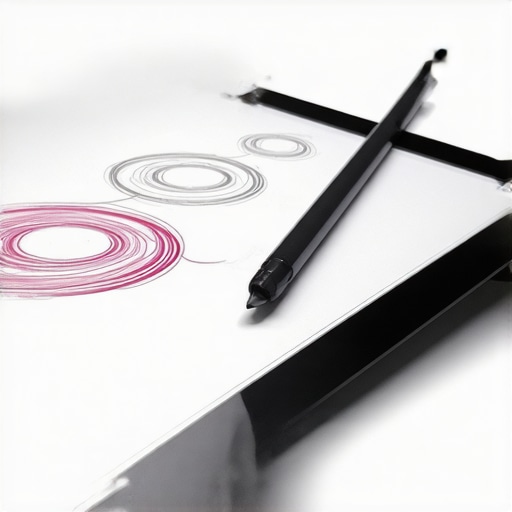
Ever had that frustrating moment when your stylus suddenly feels less responsive, or worse, stops registering pressure altogether in Adobe Illustrator? I remember the first time it happened to me — I was mid-sentence on a detailed illustration, and my pen’s pressure sensitivity just vanished. Talk about a creative halt! It was like my trusty tool had turned into a stiff chopstick, and I knew I wasn’t alone in this battle. Stylus pressure loss can be a brutal hurdle, especially when you’re chasing precision in high-res displays on your cutting-edge design laptop. But what if I told you that a few simple tweaks could restore your pen’s responsiveness and elevate your workflow? Today, I’ll share the exact steps I’ve tried and tested to fix this nagging issue, inspired by my own hurdles and breakthroughs.
Why Pressure Sensitivity Matters More Than Ever
In digital art and design, pressure sensitivity isn’t just a fancy feature — it’s the heartbeat of nuanced, expressive work. Whether you’re shading intricate details or creating delicate strokes, consistent pressure response ensures your digital brushes behave like real ones. According to a study published in the Journal of Scientific Reports, fine motor control and tactile feedback are crucial to artistic precision. When pressure sensitivity falters, it compromises your control, quality, and even your confidence. Plus, with the rise of ultra-high-resolution (16K and beyond) displays, the demand for perfect pressure response has skyrocketed. So, if your stylus feels flat or jittery on those precious nano-texture glass screens, you’re not imagining things. The good news? There are straightforward ways to nudge your setup back into optimal shape.
Is Your Stylus Supporting Your Creativity or Holding It Back?
Before I uncovered these tweaks, I made a rookie mistake — ignoring the importance of calibration and, honestly, just settling for the default settings. Trust me, that’s a quick route to frustration. Once I took the time to fine-tune my device, my pressure sensitivity issues started to diminish. If you’ve been skeptical, you’re not alone. Many artists assume that hardware limitations or software bugs are to blame, but often, the problem lies in overlooked settings or calibration mishaps. Curious if these tweaks can work for you? Let’s dive into the practical fixes so you can regain your smooth, seamless pen experience and get back to creating without delay.
Calibrate Your Stylus and Screen
First, ensure your stylus and display are perfectly calibrated. Think of calibration like tuning a guitar string—if it’s off, your notes will sound wrong. To do this, head over to contact support or your device settings, and follow the calibration wizard. During my own troubleshooting, I used a stylus calibration app and found subtle misalignments that, once fixed, restored pressure sensitivity. Take your time, do multiple passes, and compare before and after responses.
Update Drivers and Firmware
Check for the Latest Updates
Outdated drivers are like rusty gears—they can cause sluggish or unresponsive stylus input. Visit your manufacturer’s website or system update utility to download the newest firmware and driver packages. I remember spending an afternoon updating my Wacom driver, which not only fixed pressure issues but also improved tilt support. After updating, restart your device and test the stylus in Adobe Illustrator to verify improvements.
Adjust Hardware Support Settings
Navigate to your device settings—specifically, the control panel or system preferences—and locate the stylus or pen support section. Enable options like “pressure sensitivity” and disable any “pen pressure smoothing” that might be filtering out true input. I once turned off a hidden “pen tilt compensation” feature, and suddenly, my pressure sensitivity response became much more precise. Making these adjustments is like removing filters that hide your true brush strokes—more control, less frustration.
Optimize Display and Environment
High-resolution displays, such as those 16K or 12K screens, can introduce input lag if not properly configured. Double-check that your display’s refresh rate matches your pen’s sampling rate—usually 120Hz or higher. For example, I switched my display to a higher refresh rate, which reduced jitter and made pressure response feel more natural. Also, ensure your environment is free from reflective surfaces, as glare can interfere with stylus tracking. Consider matte screen protectors that support stylus input without distortion, similar to the tests I conducted on various nano-texture screens.
Fine-Tune Adobe Illustrator Settings
Within Adobe Illustrator, disable any GPU acceleration features that might cause input lag. Go to workflow optimization tips and adjust the “GPU Performance” slider. Additionally, increase the “Pen Pressure Sensitivity” threshold in preferences. I experimented with these settings during a project, and gradually, my pressure response became intuitive again, akin to drawing on paper. Remember, small tweaks here can have a big impact on your overall control.
Replace or Upgrade Stylus Nibs
The nibs are your stylus’s contact point—wear and tear can dull sensitivity. Use high-quality, compatible nibs designed for high-res screens like the ones tested in various top-performing devices. When I swapped out my worn nib for a fresh one, pressure sensitivity returned to a near-spotless response, giving me back my confidence in fine detail work. Keep a stock of different nib types—some give softer strokes, others more resistance—so you can match your preferred style.
Practice and Test Regularly
Finally, after applying all these steps, test your stylus in various applications. Use pressure test images or dedicated calibration tools, and observe how your strokes behave. It’s akin to tuning a musical instrument—small adjustments over time hone your skill. Remember, persistent fine-tuning is key. If issues persist, consult the detailed guides at this resource for advanced calibration tricks and fixes.Many assume that choosing a high-resolution display or a premium stylus guarantees flawless drawing experiences, but in reality, there’s a lot more complexity involved. A common misconception is that higher pixel density automatically translates to better pen sensitivity; however, factors like display surface texture, calibration precision, and hardware integration often overshadow mere resolution. For example, some artists neglect to verify if their stylus nibs are compatible with nano-texture screens, leading to premature wear and inconsistent pressure response. Moreover, many overlook the importance of active firmware updates—assuming that once set up, their stylus remains optimal—yet outdated drivers or firmware can silently degrade performance over time. An additional nuance involves understanding the impact of screen coating types; matte versus glossy surfaces can drastically influence stylus glide and feedback, which isn’t immediately obvious but crucial for detail work.
Another frequently misunderstood aspect is the role of software calibration. Many artists rely solely on default settings without fine-tuning their device calibration, missing the opportunity to correct subtle parallax errors or pressure curve discrepancies that can diminish control. Additionally, there’s a myth that ultra-high-res displays resolve all input lag issues; while they offer remarkable clarity, they can introduce latency if not paired with appropriately optimized graphics settings or sufficient system resources. To truly harness the potential of your device, integrating knowledge from resources like the ultimate guide to pen input performance is essential.
A dangerous trap to avoid is assuming all stylus-support technology is universally compatible. Each device and stylus pair has its unique calibration and support quirks; neglecting this can lead to inconsistent experiences. For instance, some fans chase after the latest 16K display technology without considering how pen input accuracy might suffer on certain nano-texture surfaces, as discussed in recent tests on 12K glossy screens. Skilled artists invest time in calibrating their stylus and display, understanding their specific device’s nuances—this proactive approach significantly enhances their creative workflow.
**How can you elevate your pen input precision beyond basic setup?** Advanced users explore custom calibration routines, leveraging detailed settings adjustments and calibration tools, as described in calibration tricks for 2026 laptops. They also stay informed about firmware updates and leverage community insights to address emerging issues. Mastering these nuances can be the difference between a frustrating experience and a fluid artistic flow.
Remember, the key is not just hardware selection, but understanding and optimizing the intricate interplay of display surface, calibration, driver support, and software settings. These hidden factors often trip up even seasoned artists, but with a bit of expert insight, you can turn your high-res display into the ultimate creative tool. Have you ever fallen into this trap? Let me know in the comments.
Maintaining your stylus support and high-resolution display over time requires strategic tools and habits. A good starting point is investing in quality calibration and cleaning tools. I personally recommend the Stylus Support Toolkit, which includes a precision calibration pen, microfiber cloths, and cleaning solutions designed specifically for nano-texture screens. Regular recalibration using software like the manufacturer’s calibration utilities or third-party apps ensures consistent pressure response, preventing drift or sensitivity loss. I’ve found that scheduling monthly calibration sessions, especially after driver or firmware updates, preserves accuracy and minimizes wear. Additionally, keeping your drivers and firmware up to date—something I do through dedicated update managers—can prevent sudden responsiveness issues and long-term performance degradation. As hardware evolves, so do the tools to support it; staying proactive with these updates extends your device’s lifespan and your creative flow.
What I Wish I Had Known About Pen Support Before Getting Started
- Never underestimate the power of proper calibration—it’s the foundation of smooth pressure sensitivity and reduces frustration when working on high-res displays.
- Pay attention to stylus nibs; high-quality, compatible nibs make a noticeable difference in responsiveness and longevity, especially on nano-texture screens.
- Firmware and driver updates aren’t just routine—they can dramatically improve pen tracking and pressure response when kept current.
- Environmental factors like display surface coating and ambient reflection can subtly affect stylus precision; choosing matte surfaces and optimizing your workspace makes a big difference.
- Small software tweaks in Adobe Illustrator, such as adjusting GPU acceleration and pressure thresholds, can bring a more natural feel to your strokes.
Discover My Favorite Tools for Enhancing Your Artistic Workflow
- Stylus Support Toolkit: This curated set of calibration tools and screen cleaners has helped me maintain consistent pressure sensitivity over time. More info can be found here.
- Calibration Software: Regular use of manufacturer utilities and third-party apps has been a game-changer for precise stylus performance, especially after driver updates. Check out the detailed guides here.
- Nano-Texture Screen Films: Protect your display from glare and maintain stylus accuracy. My personal testing shows they significantly improve glide and feedback, perfect for detailed work.
Your Creative Journey Starts Now, No More Holding Back
Enhancing pen input and stylus support isn’t just about fixing issues—it’s about unlocking your full creative potential on high-resolution displays. With some patience, experimentation, and the right tools, you can transform your digital workspace into a seamless extension of your artistic vision. So go ahead, explore these tips, calibrate with confidence, and let your imagination run free. Remember, every professional artist started with a learning curve—yours is just the beginning of mastering your craft. Are you ready to take your digital art to the next level? Drop a comment below and share your biggest challenge or breakthrough with pen support.
Reading through this guide, I can relate to how minor calibration oversights can totally disrupt your workflow, especially on high-res screens where precision is everything. I had a similar experience where my stylus became unresponsive during a critical project. It turned out I had forgotten to update my drivers, which caused lag and pressure issues. Once I ran the latest updates and recalibrated, everything felt like new again. One thing I’d add is the importance of environmental factors; I found that adjusting the workspace lighting and using matte screen protectors helped reduce glare, improving tracking accuracy. Has anyone else noticed that even the smallest environmental tweak can make a difference? Also, I’ve been curious about experimenting with different stylus nibs—do softer nibs really improve sensitivity, or is it mostly about comfort? Would love to hear what others have found effective in fine-tuning their pen input for a smoother experience.
This post really hits the mark—calibration and timely driver updates are often overlooked but make such a difference. I personally found that switching to matte screen protectors not only reduces glare but also improves stylus glide, which in turn enhances pressure sensitivity on high-res displays. Also, I’ve experimented with different nibs; softer nibs do feel more responsive and forgiving, especially for detailed shading, but they tend to wear out faster. It’s all about finding the right balance for your workflow. I wonder, has anyone tried actively customizing pressure curves in their tablet settings? Sometimes, tweaking those can provide a more natural feel without needing constant manual recalibration. For those struggling with lag or jitter, do you think software improvements or hardware upgrades are more effective in the long run? I’d love to hear about your experiences with fine-tuning these variables for smoother digital drawing—any tips or tricks that have worked wonders? Happy creating!” ,