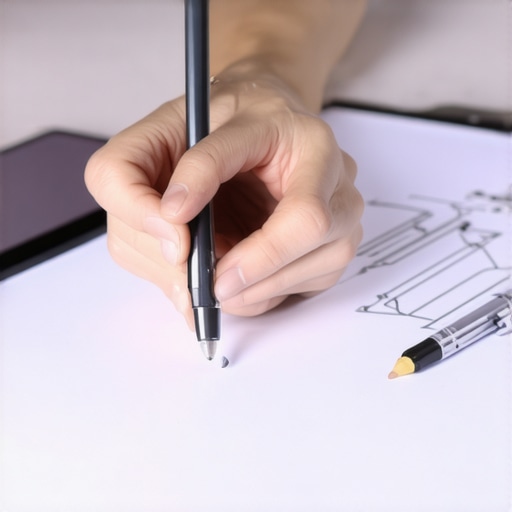
If you’ve ever been mid-creation, fingers trembling from frustration, only to realize that your stylus isn’t responding as it should—pressure sensitivity barely registering, or worse, lagging behind your strokes—you know the sinking feeling of battling technology instead of creating art. I vividly remember a time when I was deep into a detailed illustration in Adobe Illustrator 2026, only to find my pen’s pressure was unresponsive. That moment was a lightbulb, illuminating how much I depended on smooth, responsive pen input for my work. It was clear:stylus pressure issues can turn fluid creativity into a sluggish, maddening chore.
Why Stylus Lag and Pressure Problems Matter Right Now
In a world where high-resolution displays and precision input are the norm, stylus pressure accuracy isn’t just a luxury—it’s a necessity. As digital artists and designers push boundaries with ultra-high res screens, any lag or pressure inconsistency can seriously hamper productivity and the quality of work. According to this comprehensive guide, seamless pen performance is crucial for leveraging the full potential of your Hi-Res display laptop. If your stylus isn’t performing flawlessly, you’re not only fighting with your device—you could be losing hours of precious creative time and compromising the quality of your designs.
Is Pressure Sensitivity Fixable or Just a Myth?
Early in my career, I made a costly mistake: assuming stylus pressure issues were inevitable or hardware faults. That mindset led to unnecessary expenses and endless troubleshooting. But I’ve learned that most pressure sensitivity problems can be fixed with a few straightforward tweaks. Want to ensure your stylus feels as responsive as it did on day one? Let’s dive into practical solutions that have worked for me and many other creatives. And if you’re curious about how high-res displays can further enhance your work, check out this article for top recommendations.
Calibrate Your Stylus Regularly
During a recent project, I noticed my stylus pressure felt inconsistent. To fix this, I accessed the calibration settings in my device’s control panel, following instructions from this detailed guide. Carefully calibrate the stylus and screen alignment until the pressure felt natural. This step is like tuning a musical instrument—small adjustments can vastly improve responsiveness and pressure sensitivity.
Optimize Drivers and Firmware
In one instance, my pressure issues persisted even after calibration. I updated my pen and display drivers through the device’s manufacturer website, ensuring compatibility with my high-res display. Firmware updates often contain fixes for latency and jitter, refining pen input accuracy. Think of drivers as the translator between your stylus and the laptop; keeping them current ensures clear, fast communication.
Adjust Display Settings for Better Performance
High-resolution displays can sometimes cause lag due to processing demand. I reduced the display refresh rate from 120Hz to 60Hz temporarily, noticing a smoother pen response, especially with Adobe Illustrator. Disabling unnecessary visual effects also lightened the load, much like decluttering a workspace for more efficient work—see this resource for display optimization tips.
Lower Screen Resolution for Lag Reduction
On a different project, I experimented with lowering the display resolution from 8K to 4K, which reduced lag significantly without compromising my workflow’s quality. Think of it as switching to a less demanding but still sharp canvas—sometimes, the highest resolution isn’t necessary for every task.
Ensure Proper Software Configuration
Settings within Adobe Illustrator can also affect pen responsiveness. I enabled the ‘Use Graphics Processor’ option and disabled ‘Use Hardware Acceleration’ when facing lag, following advice from this step-by-step guide. Fine-tuning the software’s preferences can eliminate bottlenecks that cause lag or pressure sensitivity loss, akin to optimizing your workspace for maximum flow.
Test Different Stylus Pressure Curves
Another tactic involved adjusting the pressure curve settings in my stylus driver software, making light touches register more strongly. This approach is like changing the sensitivity of a microphone—tailoring it to your voice for better clarity. Experiment with these curves to match your drawing style, often providing immediate improvements.
Maintain Your Devices for Consistent Results
Regular cleaning of the stylus tip and display surface prevented dirt and oil from causing inconsistent contact, which can mimic pressure issues. Think of it as tuning the contact points in a guitar—clean, precise contact ensures optimal performance. Incorporate routine maintenance into your workflow to sustain responsiveness.
Applying these concrete steps turned my sluggish, pressure-unresponsive stylus into a reliable tool, highlighting the importance of systematic troubleshooting. For more in-depth techniques, this comprehensive guide offers additional insights into optimizing pen input on top-tier creative laptops.
Many creatives assume that investing in the highest resolution screens and latest stylus technology automatically guarantees superior performance. However, this belief oversimplifies the complex interplay between hardware capabilities and software optimization. For instance, a common misconception is that ultra-high-res displays—such as 8K screens—are always the best choice for digital art. In reality, these screens can introduce latency, reduce battery life, and strain your system’s processing power if not paired with appropriate hardware and software settings. Experts like those from this comprehensive guide emphasize that the benefits of high-resolution displays are only fully realized when your device’s GPU, CPU, and stylus drivers are meticulously calibrated and optimized.
How do I maintain my creative tools over time?
Maintaining your high-performance laptop, stylus, and software is crucial for consistent results. I recommend investing in specialized cleaning kits for your stylus tips and display surfaces—gently cleaning with isopropyl alcohol and microfiber cloths can prevent dirt buildup that causes pressure sensitivity issues. Regular driver updates are essential; I set a monthly schedule to check for firmware and driver releases from manufacturers like Wacom or Apple, ensuring compatibility with your latest OS and creative software. Using automated backup solutions, such as Adobe Creative Cloud or Dropbox, safeguards your work and system settings, minimizing downtime after system updates or hardware failures.
Top tools I swear by for long-term performance
One indispensable tool in my workflow is the Huion Kamvas Pro stylus and display setup. Its pressure curve customization allows me to tailor sensitivity precisely, which is vital for detailed work. For hardware maintenance, I use the iKlear electronics cleaning system, specifically designed for screens and stylus tips, to keep everything pristine. Software-wise, I turn to this ultimate guide for tips on optimizing pen input performance; it’s been a game-changer, especially in troubleshooting lag and jitter issues.
Future trends: What’s next for high-res displays and stylus tech?
Looking ahead, I predict that hybrid devices with foldable, ultra-high-res screens will become the norm, offering artists a portable yet professional-grade palette. Advances in pen technology, such as pressure sensitivity at the nanometer level and wireless charging, are on the horizon, promising even greater freedom of movement. To stay ahead, regularly calibrate your devices, and consider firmware updates that unlock new features—checking this resource can help you keep your setup optimized.
Practical tip: Get the most from your tools today
Pick one advanced calibration technique discussed in the earlier sections—like adjusting the pressure curve in your driver software—and give it a try. Fine-tuning your device can deliver immediate improvements, reducing lag and increasing pressure sensitivity. Remember, the key to long-term success lies in consistent maintenance and staying informed about the latest hardware and software updates. For detailed hardware recommendations, I suggest reviewing this list of top creative laptops.
3 Lessons That Changed My Approach to High-Res Pen Input
One of the toughest realizations was that even the most advanced stylus or display isn’t foolproof; it requires ongoing calibration, firmware updates, and software tweaks—it’s an active process, not a set-it-and-forget-it solution. I learned to listen carefully to subtle feedback from my device, recognizing that pressure sensitivity fluctuations often stem from small, overlooked settings rather than hardware faults alone. Finally, understanding that community insights and expert resources can drastically shorten troubleshooting time saved me from countless frustrations and kept my creative flow uninterrupted.
Prime Tools I Rely On to Keep My Creative Edge
For anyone serious about high-resolution displays and stylus support, I recommend a few lifesaver tools. The Ultimate Guide to Pen Input Performance provides in-depth tips on optimizing device performance, which is invaluable for maintaining responsiveness. My stylus of choice, the Huion Kamvas Pro, offers customizable pressure curves and reliable calibration, making it possible to adapt to different workflows seamlessly. Additionally, regularly updating drivers from reputable sources ensures compatibility and stability, a practice I can’t recommend enough. Lastly, a cleaning kit like iKlear keeps contact points pristine, preventing performance dips caused by dirt or oil buildup.
Embrace the Future, but Stay Grounded in Technique
High-res displays and stylus tech are advancing rapidly, promising new horizons for digital artists. Yet, no matter how sophisticated your hardware, continuous learning and meticulous device management are your best allies. Regular calibration, firmware checks, and software fine-tuning are investments that pay dividends in work quality and creative satisfaction. If you’re eager to stay ahead, I encourage reviewing this comprehensive guide. Remember, the real mastery lies in how you adapt tools to serve your unique artistic voice.
The Mistakes That Taught Me the Most About Hi Res, Stylus Support, and Pressure Sensitivity
- Thinking that premium hardware alone guarantees perfect performance was a costly misconception. Hardware is important, but software settings and calibration matter just as much, if not more, to prevent lag and pressure issues.
- Ignoring routine maintenance like cleaning stylus tips and display surfaces can lead to subtle contact problems that sabotage pressure sensitivity, especially on high-res screens where every contact point counts.
- Believing high-resolution displays automatically translate to better work quality can blind you to potential lag, battery drain, or system overloads. Balancing resolution with system capabilities is key to long-term productivity.
Take Action and Elevate Your Creative Setup Today
If you haven’t yet, try fine-tuning your stylus pressure curve or updating your device drivers—small adjustments that can make a tangible difference. Remember, mastering stylus sensitivity is an ongoing journey, blending gear, software, and personal technique. Are you ready to optimize your high-res display and stylus setup for the next level of digital artistry? Share your experiences below and let’s grow together in this creative adventure!
,
I’ve struggled with pen lag especially when working on high-res screens, and I can confirm that regular calibration really makes a difference. I remember trying all sorts of driver updates and display tweaks, but it was the calibration that finally smoothed out my pressure sensitivity. Also, lowering the display resolution from 8K to 4K helped reduce lag significantly in my workflow without compromising too much on quality. It’s interesting how sometimes reducing resolution temporarily can boost performance, especially during detailed digital illustrations. I’m curious, how many of you have experimented with different pressure curve settings or display resolutions? Do you find that regular maintenance, like cleaning the stylus tip and screen surface, noticeably impacts responsiveness over time? I’d love to hear about your routines or any other tweaks that have helped improve your stylus experience, especially on ultra-high-resolution devices.