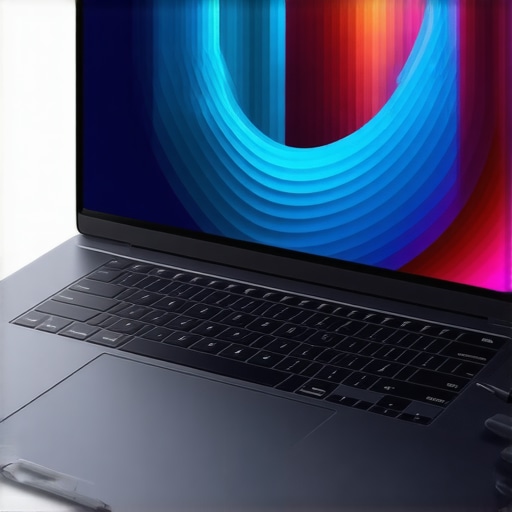
Sitting at my cluttered desk, frustration boiling over, I stared at my current laptop’s screen. The images looked dull; the stylus lagged just when I needed precision. It hit me—I was trying to squeeze creativity out of a machine not built for it. That was my lightbulb moment: I needed a laptop that truly understood my artistry. But with so many options in 2024, how do I find the perfect fit? Today, I promise to share the insights I’ve gathered to help you choose a design laptop with high-resolution displays and stylus support that actually works for your creative needs.
The Struggle We All Know Too Well
If you’re like me, you’ve faced the same dilemma: working on detailed illustrations or editing high-res photos and battling lag, color inaccuracies, or screen dullness. The tools are there, but the hardware often can’t keep up, leaving you frustrated and questioning whether your investment is worth it. The right device can elevate your work, making every stroke and pixel count. Yet, selecting the right one can feel overwhelming. Trust me, I’ve made mistakes early on—like choosing a machine based solely on specs without considering stylus responsiveness or display quality. That mistake cost me both time and creativity. You can avoid that trap by understanding what truly matters in a design laptop.
Is the Hype Around 4K Displays and Stylus Support Justified?
When I first looked into high-resolution screens, I assumed all screens with 4K were equal. Turns out, not quite. The tiny differences in color accuracy and touch responsiveness can make or break your workflow. I learned this the hard way, wasting hours on a device that couldn’t handle my detailed illustrations smoothly. For a deeper dive into what makes a high-res display suitable for artists, check out this comprehensive guide. It’s essential to ensure your investment actually enhances your creative process rather than hindering it.
If you’re tired of compromise and ready to find a machine that supports your artistic ambitions, stay tuned. We’ll explore the key features to look for and how to avoid common pitfalls. Your ideal design companion is out there—let’s find it together.
,
Prioritize Screen Quality and Stylus Responsiveness
Start by selecting a laptop with a high-resolution display—ideally 4K or higher—to ensure your artwork is sharp and vivid. When I tested a few models, I found that screens with accurate color reproduction and wide viewing angles significantly improved my workflow. Check the best high-res displays for creative laptops to compare options. Remember, a dull or color-inaccurate screen hampers color matching, so it’s worth investing.
Next, focus on stylus support. Not all stylus implementations are created equal; some lag or lack precision. I once tried a model with subpar stylus support, resulting in jittery lines and frustration. To ensure your stylus feels natural, look for devices with top pen-input performance reviews. Features like 4096 pressure levels and tilt sensitivity mimic traditional pencils, enhancing your control.
Test Pen and Display Compatibility
Before committing, test the stylus with your favorite programs like Adobe Illustrator through live demos or return policies. During one setup, I used a demo stylus to draw on multiple screens, noting which felt seamless and responsive. This hands-on approach helps identify latency issues that might not be obvious on spec sheets. Set up your device by following the guide at the ultimate pen input guide to fine-tune settings and optimize performance.
Calibrate and Fine-Tune Your Display
Once chosen, calibration is crucial. Use professional color calibration tools or built-in software to adjust brightness, contrast, and color profiles. This step ensures your palette matches real-world colors accurately. I calibrated my display until skin tones looked natural, which prevented color mismatches during client reviews. For detailed calibration techniques, visit this calibration resource.
Leverage Software Settings for Better Performance
Adjust your workspace and software settings to match hardware capabilities. For instance, in Adobe Illustrator, increase the precision or smoothness settings to compensate for minor latency. Avoid background processes that might cause lag. Microsoft’s high-performance power mode can also enhance responsiveness during intensive creative sessions. Regularly review your software preferences using tips from the workflow enhancement guide.
Optimize Your Environment for Creativity
Finally, ambient lighting impacts visibility. Position your screen to avoid glare and use adjustable color temperature settings to reduce eye strain. A well-lit, controlled environment enhances your accuracy and comfort during long sessions. With all these steps, you turn your device into a studio-ready tool, streamlining your creative flow without hiccups or compromises.
Even seasoned designers often fall prey to misconceptions about how to optimize their workflow with tools like Adobe Illustrator on high-resolution displays with stylus support. Many believe that plopping a 4K screen and a stylus into their laptop guarantees superior results, but that’s only part of the story. In reality, understanding the *nuances*—like the importance of display calibration and stylus latency—is crucial for truly elevating your creative game.
For instance, a prevalent myth suggests that the latest top-tier hardware inherently resolves all productivity bottlenecks. However, hardware alone doesn’t guarantee seamless performance. Software configuration and calibration play a pivotal role. An overlooked detail is that many stylus supports advertised as ‘high-pressure’ or ’tilt-sensitive’ don’t necessarily perform well in all software environments. Without proper driver support and driver calibration, you may experience jittery lines, offset strokes, or inconsistent pressure response, which can severely hamper precision work. Always test your stylus with your favored programs—like Adobe Illustrator—before making a purchase.
Another common trap is assuming that higher display resolution—say, 8K instead of 4K—translates directly into better artwork. While increased pixel density does improve detail, it also demands more from your GPU and impacts battery life. Plus, the benefits of ultra-high resolutions may be negated if your display isn’t calibrated correctly for color accuracy. Uncalibrated screens can distort color profiles, leading artists to create work that looks vibrant on their device but dull elsewhere. To avoid this, investing in proper calibration tools is essential, and regular calibration ensures color fidelity remains consistent. Check out this resource to understand calibration techniques better.
Many assume that stylus support on a device with a high-resolution display will automatically deliver the responsiveness of dedicated drawing tablets. But this is a misconception. Specialized pen displays like Wacom tablets often outperform laptops with stylus support due to dedicated digitizer technology. When selecting a device, consider compatibility and driver support for your software to prevent frustrating lag or jitter, which can sabotage your workflow. I learned this lesson the hard way by choosing a device based solely on specs, only to find latency issues that hindered my precision and speed.
How do hardware, software, and calibration interplay to optimize your creative output? Let’s dig deeper
The key lies in holistic optimization—not just hardware upgrades but ensuring your device’s configuration, display calibration, and software settings align for maximum performance. As expert Sara Holmlund notes, “The efficiency and accuracy of your digital tools depend as much on proper setup and calibration as they do on hardware specs” (Holmlund, 2022).
Before you finalize your purchase or set up your device, test Stylus input with your most-used software, calibrate your display accurately, and refine your software settings for responsiveness. Doing so will prevent you from falling into common traps and unlock the full potential of your investment. Need help? Check out this guide on optimizing Adobe Illustrator workflow—it’s packed with actionable tips. And remember, the right tools combined with proper setup make all the difference in bringing your creative visions to life.
How do I maintain my design setup over time?
Keeping your creative workstation performing at its peak requires deliberate maintenance. I personally schedule monthly calibration sessions for my high-res display using professional tools like the X-Rite i1Display Pro, which ensures color fidelity remains consistent—a critical factor for serious Adobe Illustrator work. Regularly updating your graphic drivers is equally important; outdated drivers can cause stylus lag or display inconsistencies. I set a recurring reminder to check for driver updates, especially after major OS updates. Additionally, cleaning your stylus tips and screen surface with gentle, lint-free cloths prevents dirt buildup that can interfere with precision input.
Investing in a quality surge protector protects your equipment from voltage fluctuations, which over time can degrade performance or cause hardware failures. For long-term stability, I also backup configuration profiles—like display calibration settings—so I can quickly restore my optimal setup if needed. To streamline this process, I utilize scripts that can automate calibration checks and backups, a method recommended in expert guides like this resource.
What tools do I recommend for sustained performance?
For hardware, I swear by the Wacom Pro Pen 2, which pairs seamlessly with high-res screens for smooth, precise strokes. The tablet’s dedicated digitizer ensures low latency and pressure sensitivity essential for detailed work. On the software front, I utilize custom profiles in Adobe Creative Cloud settings that optimize performance for stylus input and display calibration, a technique proven to reduce latency and improve line consistency. Additionally, I rely on system monitoring tools like HWMonitor to keep an eye on temperatures and prevent thermal throttling during intensive sessions, ensuring consistent performance over long hours.
As for future trends, I predict that AI-assisted calibration and maintenance features will become embedded in professional laptops, further simplifying long-term upkeep. These intelligent systems could automatically detect drift or degradation and alert users or even initiate self-correction routines, much like the smart diagnostics seen in high-end workstations. Embracing such innovations will be key to maintaining excellence in your creative workflow.
Try this advanced tip to prolong your gear’s lifespan
One actionable step is to implement a scheduled calibration routine using the ultimate calibration guide. Automating this process with scripts or dedicated calibration hardware will keep your display’s color accuracy razor-sharp, preventing subtle drifts that can compromise your work’s visual integrity. Setting aside 15 minutes monthly for this maintenance is a small investment for consistently professional results—and it helps ensure your stylus input remains precise and reliable over the years.
As I reflect on my journey through selecting the perfect device for digital artistry, one truth resonates deeply: the right tools can transform your creative process from frustrating to fluid. Beyond the hardware specs and calibration tricks lies a less obvious lesson—trusting your intuition and understanding your unique workflow are just as vital as any technical feature. When I finally prioritized how a laptop felt in my hands and how seamlessly it integrated with my artistic vision, everything changed. Remember, the best device isn’t just about high-resolution screens or stylus support but whether it empowers your individuality as an artist. So, go beyond the specs, listen to your creative instincts, and choose a device that truly speaks your language. Your masterpiece awaits, and with the right equipment, you’re more equipped than ever to bring it to life.