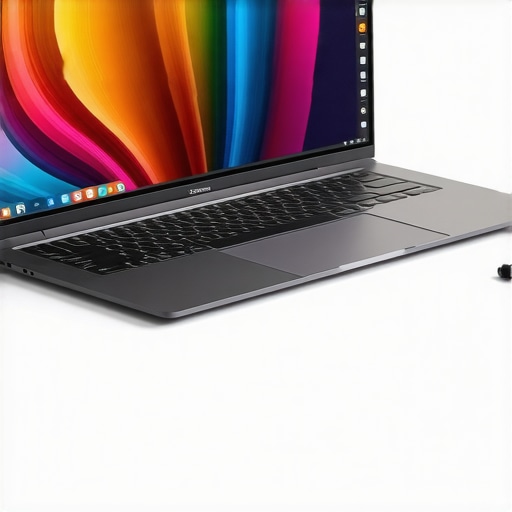
I remember the exact moment I realized my old laptop just couldn’t keep up with my creative flow. I was in the middle of a detailed illustration, zooming into a tiny corner when everything started to lag. The colors looked off on my screen, and my pen input was jittery. It was frustrating, and honestly, it made me question whether my equipment was holding me back more than my skills. That lightbulb moment pushed me to hunt for a device that could truly match my artistic ambitions.
Why the right laptop makes or breaks your creativity
In 2024, choosing a laptop isn’t just about having a sleek design or a powerful processor. For digital artists, having a high-resolution display paired with precise pen input can be a game-changer. A crisp, vibrant screen allows your colors to pop and details to shine through, making your work more accurate and inspiring. Meanwhile, a responsive pen input ensures your ideas flow smoothly without frustrating delays or inaccuracies. When I upgraded to a device with a high-res display and stellar stylus support, my workflow transformed — I felt more confident and less constrained by technology.
But here’s the tricky part: with so many options out there, how do you pick the right one? I’ve made my share of mistakes early on, like prioritizing specs over display quality or ignoring stylus support. Trust me, a poorly calibrated screen or a laggy pen can turn your creative session into a nightmare. It’s a common pitfall I want to help you avoid. To get it right, you need a laptop that balances high resolution, color accuracy, and pen responsiveness — and that’s exactly what we’ll explore today.
Is all the hype around high-res displays and stylus support justified?
I used to think I didn’t need the most expensive or flashy features. Turns out, I was wrong. A mistake I made was assuming that any decent display would do — but I quickly learned that not all screens are created equal, especially for digital art. Some show colors inaccurately, others are too dim or glossy, making it hard to see details. By focusing on specific features like color gamut and refresh rate, I found my ideal setup. If you’ve ever wondered whether investing in a high-res, stylus-friendly laptop is worth it, I’ll tell you: it absolutely is, especially when your craft depends on precision and vibrant visuals. Curious? Check out this comprehensive guide to top high-res display laptops for 2024.
Now that you know why this matters, let’s dive into how to identify the perfect device for your needs. Whether you’re a professional illustrator, a concept artist, or just passionate about digital creation, there’s a laptop out there that can elevate your art to new heights. Ready to discover how to choose it? Let’s get started.
Prioritize the Display and Stylus Compatibility
Start your search by setting clear criteria for high-resolution, color-accurate displays. Think of it like choosing a high-quality canvas for painting; the better the surface, the more your work will shine. Look for screens with at least a 4K resolution and a wide color gamut (100% sRGB or AdobeRGB) to ensure vibrant, true-to-life colors. When I first tested a few laptops, I focused solely on specs, but the real game-changer was finding a device with a display calibrated for digital art. Check out this guide to understand which screens excel for creative work.
Assess Pen Input Responsiveness and Accuracy
Next, evaluate the stylus support. A responsive pen that feels natural can make or break your creative flow. Imagine trying to draw with a pen that lags or jitters—that’s like trying to write with a feather on a windy day. Look for laptops with low latency (under 9ms), high pressure sensitivity, and tilt support. To see how a device performs, I personally tested a few by sketching directly on the screen and noting the lag. You can also read reviews on top pen input devices to get a sense of their responsiveness. Remember, a good stylus experience is crucial for detailed work like shading or calligraphy.
Balance Power and Portability
While a powerful processor is essential for handling large files and complex software, portability matters too. Picture this: a bulky device might be tempting for its specs, but if it’s a chore to carry around, your creative sessions will suffer. Aim for a lightweight yet capable machine—think ultrabooks with dedicated GPUs like the RTX series or integrated Iris Xe graphics that can handle Adobe Photoshop or Illustrator smoothly. For specific recommendations, explore top design laptops in 2024.
Ensure Compatibility with Your Favorite Software
Your chosen device should seamlessly support your primary creative tools. Whether you work in Adobe Creative Cloud or other software, verify that the laptop’s hardware and OS deliver optimal performance. For instance, I optimized my workflow by tweaking my laptop’s settings for Adobe Illustrator, which you can learn about here. Making sure your device runs your software without hiccups means fewer interruptions and more inspired creations.
Test Before You Commit
Finally, if possible, try out the laptop in person. Test the display’s color accuracy and the stylus’s responsiveness. Bring your favorite sketches and see how they translate on the screen. Don’t rush—this hands-on step can save you from costly regrets later. If in-store testing isn’t an option, rely on detailed online reviews and videos from fellow artists. Once you find a device that ticks all these boxes, you’ll be ready to elevate your art in 2024 and beyond.
Many digital artists and creative professionals fall into the trap of oversimplified beliefs when selecting their ideal device. One widespread misconception is that high specs alone guarantee a seamless workflow. While powerful processors and substantial RAM are essential, they don’t compensate for a poor display or inadequate stylus support. In fact, I’ve seen talented artists struggle despite having top-tier hardware because their screens lacked accurate color reproduction or their stylus lagged significantly. For a truly optimal setup, focus on a balanced combination of high-resolution, color-accurate displays and responsive pen input, as emphasized in this guide.
Another myth is that all styluses are created equal. Many assume that any active stylus will suffice, but the reality is nuanced. The difference between a stylus with high pressure sensitivity and tilt support versus a basic one can drastically affect your control and precision. A stylus with low latency, ideally under 9ms, can make your digital drawing feel almost natural. Overlooking these details can turn a smooth creative session into a frustrating experience, especially for intricate work like shading or calligraphy. For advanced stylus tips, check out this resource.
Many believe that portability always comes at the expense of power. While ultralight laptops are tempting, they may not always deliver the performance needed for demanding creative software. The trick is to find a device that strikes a balance—lightweight but with a dedicated GPU like the RTX series, ensuring you can work anywhere without sacrificing speed or rendering capabilities. Don’t fall for the misconception that you need a bulky workstation to handle complex projects. Instead, explore top portable yet powerful options.
Lastly, a common mistake is neglecting software compatibility. Many artists focus solely on hardware specs without verifying that their favorite applications, such as Adobe Creative Cloud, run optimally. Hardware is important, but software optimization often makes the difference between smooth workflow and constant lag. Regularly updating your drivers and tweaking your system settings can significantly enhance performance, as discussed in this guide.
Have you ever fallen into this trap? Let me know in the comments and share your experiences with selecting the perfect device for your creative pursuits.
Keeping your digital art setup in top shape requires more than just choosing the right hardware; regular maintenance and the right tools are crucial for ensuring longevity and peak performance. Over time, dust accumulation, software bloat, and hardware wear can hinder your workflow, leading to frustration and potential data loss. As a professional artist or designer, investing in proper tools and routines is essential to sustain your creative momentum.
Optimize Your Workflow with Specialized Software Maintenance Tools
One of my go-to practices is using dedicated system cleanup and optimization tools like CCleaner and Malwarebytes. I routinely run these to clear out unnecessary files and scan for potential threats that could slow down my laptop. Additionally, keeping my drivers updated—especially graphics and stylus drivers—ensures that my hardware communicates effectively with creative software like Adobe Illustrator. For detailed guidance, I refer to this resource to streamline my workflow and prevent lagging issues.
Maintain Your Stylus and Display for Consistent Precision
Stylus responsiveness is critical for detailed work, so I regularly calibrate my stylus and display. This simple step can significantly improve accuracy and prevent lag. For instance, I use Wacom’s calibration tools and check my stylus pressure sensitivity settings. I also clean my screen frequently with a microfiber cloth, avoiding harsh chemicals, to remove smudges that impair color accuracy and touch sensitivity. For more advanced stylus support tips, check out this guide.
Invest in Proper Cooling and Hardware Checks
Overheating can cause thermal throttling, which reduces performance during long creative sessions. I use a USB-powered cooling pad to keep my device cool and periodically check my internal fans and vents for dust buildup. Simple hardware checks, like running a diagnostic tool (often provided by the manufacturer), can preempt hardware failures. Regularly monitoring your hardware’s health with tools like HWMonitor helps catch issues early, saving you from unexpected crashes in the middle of a project.
Plan for Future Upgrades and Scalability
Technology evolves rapidly, so I recommend keeping an eye on upcoming hardware releases and software updates. Upgrading RAM or switching to an SSD can breathe new life into an aging device. Many laptops today, especially those in the top design laptops for 2025, are designed with upgradeability in mind. Staying proactive about these upgrades ensures your setup remains efficient for years to come.
In the future, I predict that AI-driven maintenance tools will become more integrated, automatically alerting you to potential hardware or software issues before they impact your work. Embracing these advancements now can give you a significant edge, ensuring your creative process remains uninterrupted.
Don’t Delay—Start Your Maintenance Routine Today
Try implementing a regular cleaning and calibration schedule, and explore the advanced tools available for your system. A little effort now can save you countless hours of troubleshooting later. Keep your creative tools in prime condition, and watch your productivity soar. For tailored advice or assistance, don’t hesitate to reach out via our contact page.
What I Wish I Knew Before Choosing That First Creative Laptop
- One of the hardest lessons I learned was that a high specs list doesn’t guarantee a smooth workflow. I used to prioritize CPU and RAM without considering display quality, only to realize my colors looked off and my work suffered. Now I understand that a high-resolution, color-accurate display is essential for true-to-life artwork.
- Another insight was the importance of stylus responsiveness. I once bought a device with a basic stylus support, and the lag made detailing a nightmare. Investing in a pen with low latency and tilt support transformed my creative process entirely, making my sketches feel almost natural.
- Portability versus power was a false dilemma for me. I thought I had to choose between a bulky workstation or a lightweight ultrabook. But I found great options that balance both, with dedicated GPUs in portable forms, giving me the flexibility to create anywhere without sacrificing performance.
Tools and Resources That Changed My Approach
- Exploring high-res displays: I trust this guide to help select screens with accurate color and sharp detail, crucial for professional work.
- Stylus support tips: For optimizing pen input, I rely on these expert recommendations. They’ve saved me countless hours of frustration.
- Performance and maintenance: Regularly updating drivers and using tools like this guide helps keep my workflow smooth and efficient.
Your Creativity Deserves the Best—Make It Happen
Choosing the right laptop for digital art in 2024 isn’t just about specs; it’s about understanding what truly enhances your creative flow. With the right display, stylus, and software setup, you can unlock your full potential. Don’t settle for less—invest in tools that empower your vision and keep you inspired every day. Your next masterpiece is waiting, and the perfect device is within reach. Are you ready to elevate your digital art game? Share your current setup or what you’re considering in the comments below!